

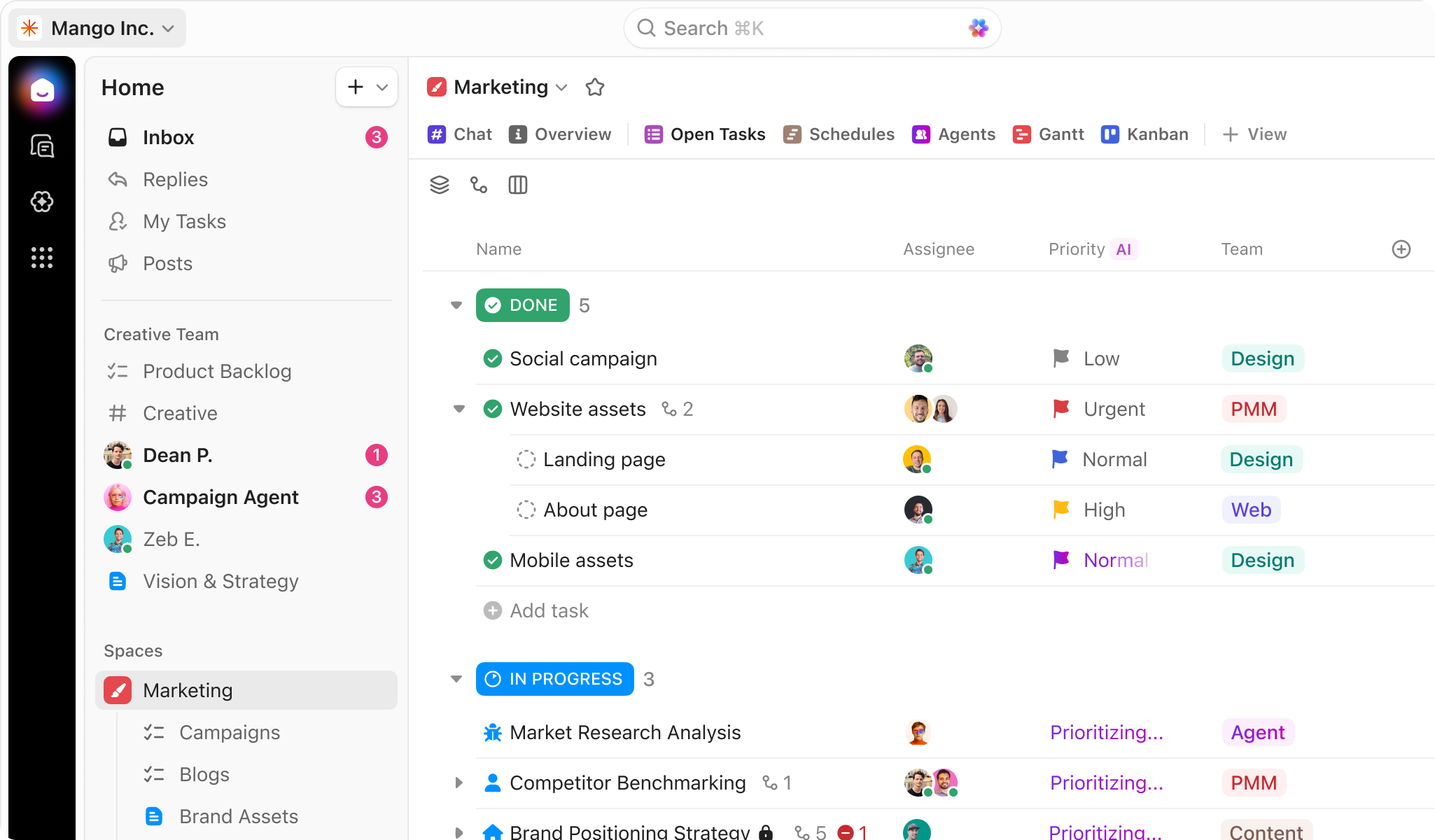
The short version
- Use one Workspace for the whole company. Work can't be moved between Workspaces later.
- Give each team or department its own Space, plus one shared Space for company-wide work.
- Folders and Subfolders are optional. Use them only to group Lists that belong together, like one client and their projects.
- A List is where tasks live. Keep each List to one type of work so its statuses and fields make sense.
- Give people two or three views, not ten.
"How should I set up ClickUp?" is the question we hear most often, usually from someone who has already tried twice. ClickUp is flexible enough to fit almost any team, and that flexibility is exactly what makes the first setup hard. There's no single right structure, but there are a few rules that make almost every workspace easier to use.
This guide walks through those rules in the order you'd apply them, then shows three real-world structures you can copy.
The basicsThe ClickUp hierarchy in one picture
Everything in ClickUp sits inside a fixed hierarchy. Each level holds the one below it, and settings like statuses and custom fields flow down from the level where you create them.
Two things to remember from this picture. First, the List is the only level that actually holds tasks. Spaces, Folders and Subfolders are containers. Second, settings cascade: a status workflow set on a Space applies to every Folder and List inside it unless you override it lower down.
Step 1Start with one Workspace for the whole company
A Workspace is your whole ClickUp account: its members, billing, integrations and everything inside. It's tempting to create a separate Workspace for each department or brand. Don't, unless those groups genuinely never share work.
You can't move tasks between Workspaces. ClickUp doesn't transfer work from one Workspace to another, so splitting too early means rebuilding later. Keep every team that hands work to another team in the same Workspace.
The usual exception is an agency that wants a completely separate Workspace per client for security or billing reasons. Even then, most agencies are better served by one Workspace with a Space or Folder per client and guest permissions.
Step 2Give each team or department its own Space
Spaces are where structure starts to matter. ClickUp's own guidance is to give each team or department its own Space, and that's the pattern we use in almost every build. Each Space can then have its own statuses, custom fields, ClickApps and privacy settings.
A typical small company ends up with something like this:
- Company: goals, announcements, company-wide projects, the team handbook
- Sales or Clients: pipeline, onboarding, account management
- Delivery or Projects: the actual work you sell
- Marketing: campaigns, content calendar, brand assets
- Operations: finance, hiring, IT, recurring admin
Name Spaces after teams, not people. "Sarah's Space" breaks the day Sarah changes roles. "Marketing" survives every reorganisation.
Avoid a Space per project. Projects start and finish; teams don't. If you create a Space for every project, your sidebar grows forever and nobody can find anything after six months.
Step 3Folders, Subfolders and Lists: when to use which
This is the decision people get stuck on most. The simplest rule: a List holds one type of work; a Folder groups Lists that belong together; a Subfolder splits a Folder into smaller groups. Folders and Subfolders are entirely optional, and many Spaces don't need them at all.
| If you have… | Use | Example |
|---|---|---|
| One ongoing stream of similar work | A List straight in the Space | Content calendar, IT requests, hiring pipeline |
| A project with several workstreams | A Folder with one List per workstream | Website redesign → Design, Build, Content |
| A handful of clients with lots of work each | A Folder per client | Acme → Retainer, Projects, Requests |
| A client or programme with several separate projects | A Folder with a Subfolder per project | Acme → Website (Design, Build), Rebrand (Strategy, Assets) |
| Many clients (20+) or constant onboarding | One List per client, or one List with a Client field | Client: Acme, Client: Northwind |
| Stages of the same work | Statuses, not separate Lists | To do → In progress → Review → Done |
Use Subfolders sparingly. One level of Subfolders is usually plenty. Every extra level is another click to reach the work, and another place for statuses and custom fields to drift apart.
That last row matters. A common mistake is creating Lists called "To do", "Doing" and "Done" and dragging tasks between them. That's what statuses are for. Separate Lists break your reporting, your automations and your task history. We cover statuses in detail in our guide to statuses, custom fields and automations.
Step 4Tasks, subtasks and checklists
Once the containers are in place, decide how granular your tasks should be. A good test: a task is something one person can own and finish. If it needs several owners, it's probably a task with subtasks.
- Task: a piece of work with an owner, a due date and a status. "Write November newsletter."
- Subtask: a part of that work someone else owns or that needs its own due date. "Design header image" assigned to the designer.
- Checklist: steps the same person ticks off without tracking separately. "Proofread, add links, schedule."
Keep nesting shallow. ClickUp allows nested subtasks several levels deep, but anything past one level is hard to see in most views and easy to lose. If you need deeper structure, that's a sign the work should be its own List or Folder.
If a task genuinely belongs to two places, like a launch task that both Marketing and Product need to see, use the Tasks in Multiple Lists ClickApp instead of duplicating it.
Step 5Pick two or three views per List
Views are different ways of looking at the same tasks. ClickUp offers many: List, Board (Kanban), Calendar, Gantt, Timeline, Table, Workload and more. Adding all of them is the fastest way to overwhelm a new team.
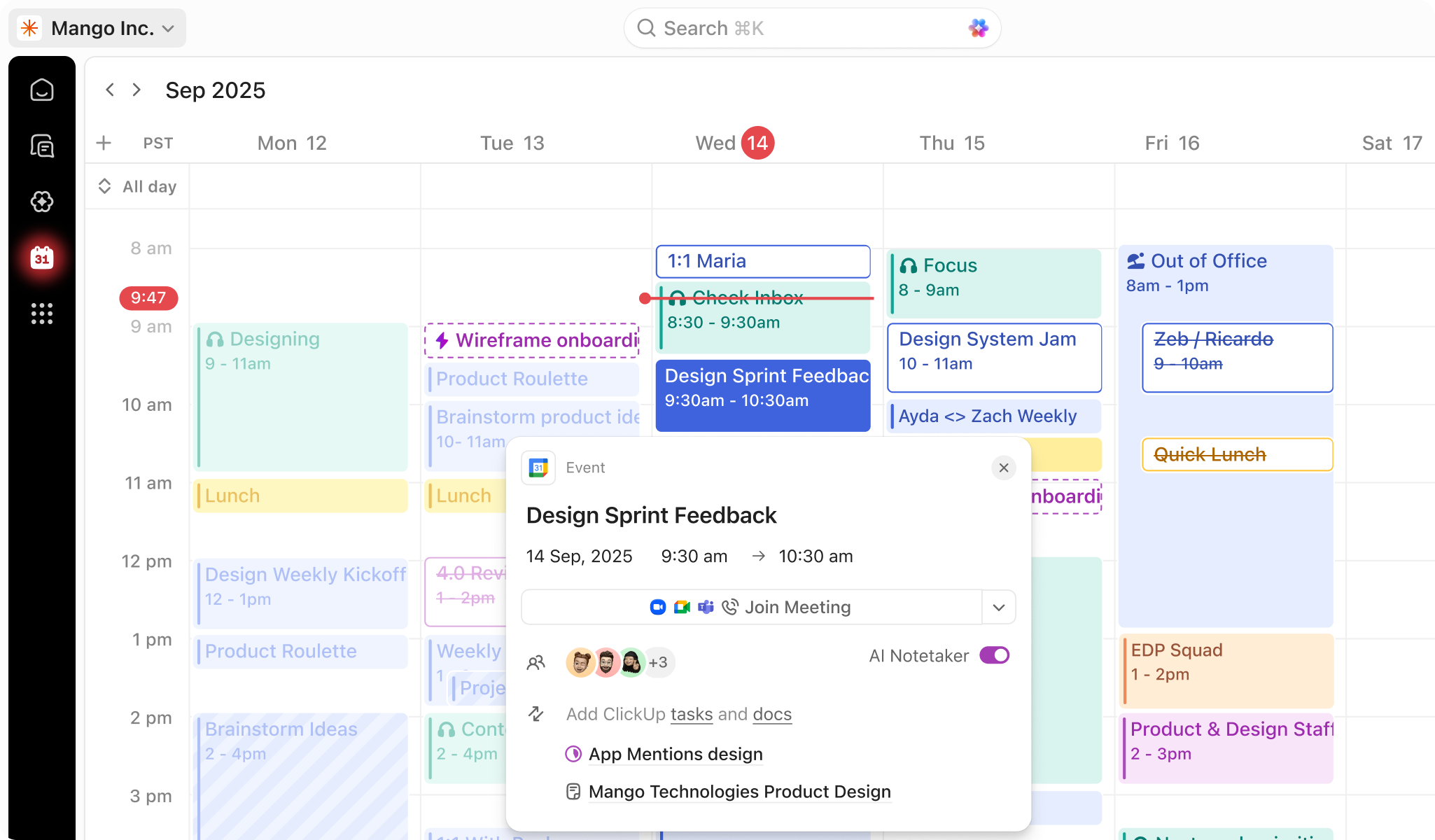
A sensible default for most Lists:
- List view, grouped by status: the everyday working view
- Board view: for teams that like dragging cards between stages
- One specialist view only where it earns its place: Calendar for content, Gantt for projects with dependencies, Workload for managers balancing capacity
Save filtered views ("My tasks this week", "Waiting on client") rather than asking everyone to set up their own filters every morning.
Copy theseThree example setups
Here's how the same rules play out for three kinds of team we build for regularly. Treat these as starting points, not templates to copy word for word.
Agency
Client work at scale- Clients (Space)
- Acme (Folder)
- Retainer
- Website (Subfolder)
- Design
- Build
- Northwind (Folder)
- Sales (Space)
- Pipeline
- Onboarding
- Operations (Space)
Small business
Five people, one product- Company (Space)
- Goals & priorities
- Marketing (Space)
- Content calendar
- Campaigns
- Operations (Space)
- Orders
- Admin & finance
Operations team
Requests and recurring work- Requests (Space)
- Intake (form)
- IT
- Facilities
- Recurring (Space)
- Monthly close
- Payroll
- Projects (Space)
Notice what they have in common: few Spaces, Folders and Subfolders only where they group real things, and Lists named after the work rather than its stage.
Avoid theseCommon setup mistakes
Most workspaces we audit have the same handful of problems. They're all easier to avoid than to fix.
Avoid
- A Space per project or per person
- Lists named "To do" and "Done" instead of statuses
- Different status names for the same stage in every List
- Ten views on every List
- Everyone set to receive every notification
Do instead
- A Space per team; projects as Folders or Lists
- One List per type of work, stages as statuses
- Status templates set once at Space level
- Two or three saved views per List
- Agree which events deserve a notification before launch
The biggest one isn't on the list, though: building without writing it down first. Sketch your hierarchy on paper or in a Doc, show it to one person from each team, and only then start clicking. Ten minutes of review saves weeks of reorganising.
Before you buildYour ClickUp setup checklist
- List your teams and what each one producesEach team becomes a Space; each type of output becomes a List.
- Sketch the hierarchySpaces, Folders and Lists on one page. Get one person per team to sanity-check it.
- Agree a status workflow per SpaceFour to six statuses, saved as a template so every List matches.
- Decide your custom fieldsOnly the ones you'll filter, sort or report on. Create them at the highest level that needs them.
- Build one List end to end and test itAdd real tasks, try the views, run it for a week before copying it.
- Add automations lastOnce the workflow is stable, automate the steps people forget.
- Invite the team with a walkthroughA short recorded video per Space beats a long live training.
FAQClickUp setup questions
How many Spaces should a ClickUp workspace have?
Usually one per team or department, plus one shared Space for company-wide work. Most small and mid-sized teams land between three and seven. If you're past ten, check whether some Spaces are really projects.
Do I have to use Folders?
No. Folders are optional and Lists can sit directly inside a Space. Add a Folder when several Lists belong together, like all the work for one client, and a Subfolder when that Folder needs splitting further, like one Subfolder per client project.
Can I move work between two Workspaces?
Not directly. ClickUp doesn't transfer work between Workspaces, which is why we recommend one Workspace for any teams that share work.
Can one task live in more than one List?
Yes. Turn on the Tasks in Multiple Lists ClickApp and you can add a task to a second List without duplicating it. Its status and fields stay in sync.
How long does a ClickUp setup take?
A single team can be set up in a day or two. A multi-team workspace with migration, automations and dashboards usually takes three to five weeks. Here's how our builds run.